13.2 Updating the firmware
Note:
Please note that you must download the firmware update for each printer individually and save it to the USB stick.
Each printer must be updated separately.
A USB stick is required to update the firmware. Transfer the update files provided by GeBioM to the root folder of a USB stick, disconnect the USB stick and then carry out the following steps:
| 1 | Switch on the printer. | 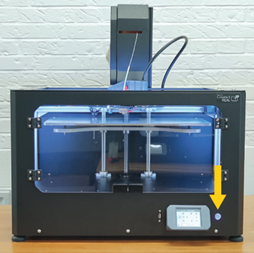 |
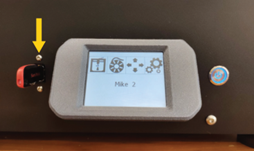
| 2 | Connect the USB stick to the printer. Important: The USB flash drive must be a FAT32 file format. |
 |
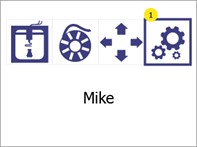
| 3 | Open the menu Settings (1). |
|
| 4 | Go to the menu Printer information and firmware update (1).
Press the Back button (2) to return to the main menu. |
 |
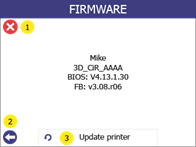
| 5 | Select Update printer (3).
Press the Back button (2) or Cancel (1) to return to the main menu |
 |
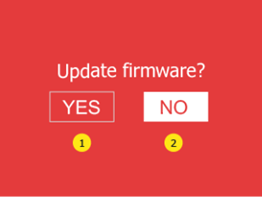
| 6 | Click "Yes" (1) twice to confirm this.
Press "No" (2) to return to the main menu. |
 |
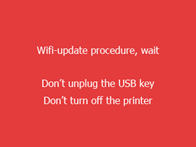
| 7 | Wait until the update is installed. | 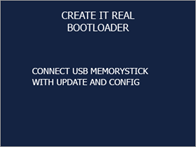 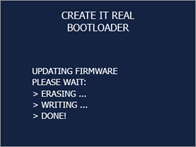 |
| 8 | Allow the printer to start, without the USB stick from the printer to remove. | 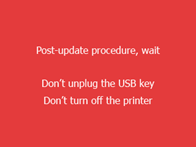
|
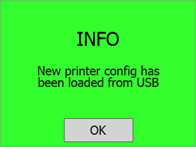
| 9 | Wait until a green screen with confirmation of the successful update or an ok button is displayed. Some update procedures can take up to one minute. |
 |